Mozenda Audit Scripts
Introduction to Audit Scripts
Audit Scripts provide a powerful, automated way to review your collected data and summarize the results for your web scraping projects. Audit Scripts allow you to evaluate your entire data set as a whole once an agent (or agent group) completes its run.
With an Audit Script, you can compress a large dataset into an automated decision such as "pass," "stop," or "warn" or aggregate data into a set of quality-control metrics before it is sent forward to your clients or downstream systems. This ensures that historical averages are met, structural formats are correct, and data quality is strictly enforced without requiring external scripts.
Key Benefit
Catch data quality errors before publishing! Customers are far happier with slightly delayed, high-quality delivery than receiving unverified or improperly formatted data.
Core Capabilities
Dataset Validation: Verify that a certain percentage (e.g., 90%) of collected rows have a specific field populated (like a price or a URL).
Schema Introspection: Iterate through the fields of your collection to check data lengths against historical averages.
File & Screenshot Auditing: Check the file size, MD5 hash, and content type of downloaded files and screenshots to ensure you aren't capturing error pages or "blocked" images.
Execution Integration: Run scripts automatically upon job completion or strategically inside a Sequence.
Getting Started & The Interface
Audit Scripts are attached to a specific View within an Agent, Standard, or Combined Collection
Accessing the Audit Script Editor
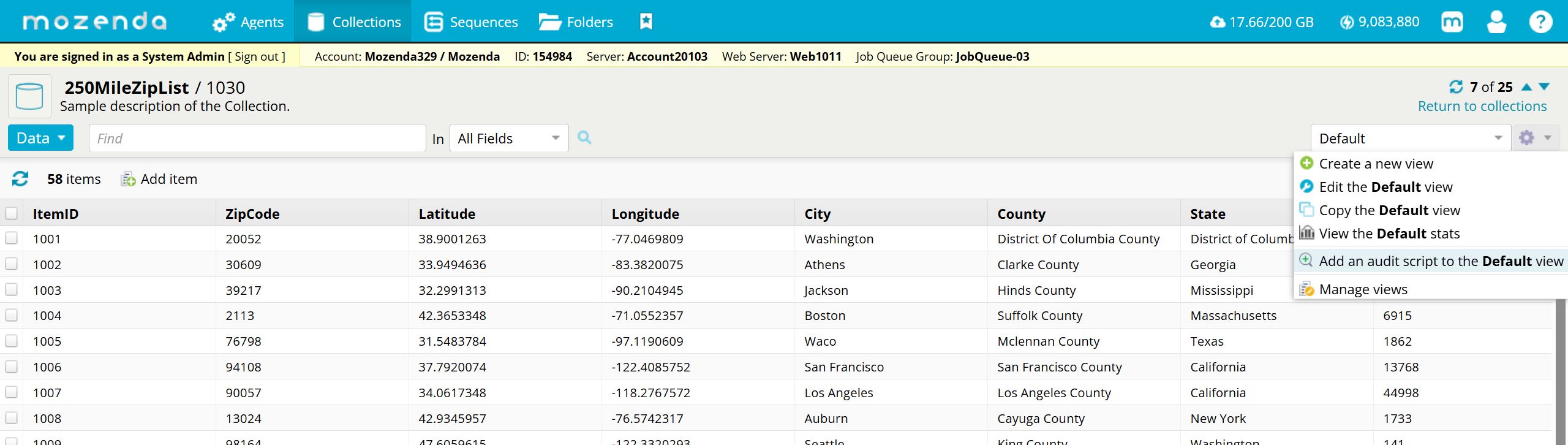
Navigate to the Collections tab in the Mozenda Web Console.
Select the Collection and ensure you are viewing the desired View (e.g., the "Default" view).
Click the settings/dropdown menu next to the View name and select "Add an Audit script to the [View Name] View”.
The Editor Interface
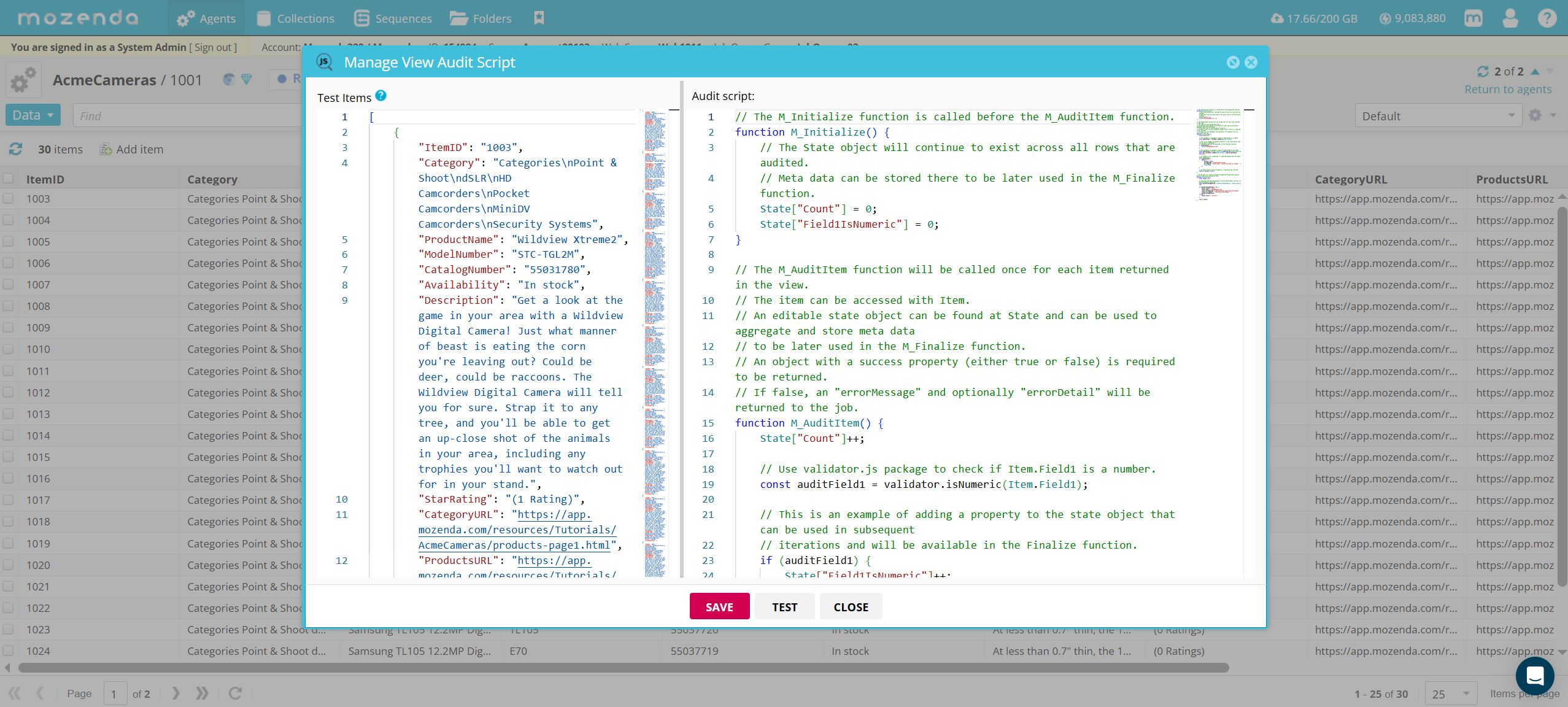
The Audit Script interface is divided into functional panels to help you test and write your JavaScript seamlessly.
Script Editor (Right Panel): A fully featured JavaScript editor where you will write your logic. It supports syntax highlighting and makes editing JSON and JS seamless.
Test Items (Left Panel): Displays a sample of the JSON payload (the rows of data) that will be fed into your script during testing.
Console / Results (Bottom Panel): Displays the output of your script, including warnings, errors, and custom console.log() debug outputs.
Writing Your Audit Script
The Audit Script uses three primary JavaScript functions to process your data. The M_AuditItem() and M_Finalize() functions are required, while the M_Initialize() function is optional. The system maintains a global State object that persists across all rows audited.
Global Variables & Replacements
Within the lifetime of the script (especially in the initialize function), you have access to metadata about your collection schema. This is highly useful for creating dynamic scripts that can be copied between different accounts.
| Data Type / Category | Description | Example Usage |
|---|---|---|
| View Fields | Array of objects containing field metadata (e.g., Field Name, Field Type, Uniqueness). | globalThis.ViewFields |
| View Field Names | Array of strings containing just the field names. | globalThis.ViewFieldNames |
| Core IDs | The Agent, View, or Collection ID for the current execution context. | globalThis.Replacements.ViewID |
| Job Statistics | Aggregated statistics from the harvesting job (e.g., items found). | globalThis.Replacements.JobStatistics.Items.Found |
| Bookmark Statistics | Statistics regarding the view's bookmarks (e.g., changed or total items). | globalThis.Replacements.BookmarkStatistics.ChangedItems |
| Agent Info | Metadata about the Agent (Name, Description, Custom fields, ItemID). | globalThis.Replacements.Agent.Name |
| Collection Info | Metadata about the Collection (Name, Description, Custom fields). | globalThis.Replacements.Collection.CollectionID |
| View Info | Metadata about the View (Name, Description). | globalThis.Replacements.View.Name |
| Harvesting Job Info | Information about the specific job run (Name, Created date, Ended date). | globalThis.Replacements.Job.Ended |
| Account Info | Broad account or department-level metadata (Company, AccountKey, Created). | globalThis.Replacements.Account.AccountKey |
M_Initialize() (Optional)
If provided, this function runs once before any rows are processed. Use it to set up your State counters or dynamically generate expected targets based on the schema. There is no return value for this function.
function M_Initialize() {

    // The State object will continue to exist across all rows that are audited.

    // Meta data can be stored there to be later used in the M_Finalize function.

    State["Count"] = 0;

    State["Field1IsNumeric"] = 0;

}
M_AuditItem() (Required)
This required function performs row-by-row auditing and aggregation capability. It runs once for every single row (Item) in your view. You can locate the currently inspected item by using the globalThis.Item. < FieldName > property or simply just Item.< FieldName >. In this function you can agggregate counters or other statistics for the entire data set in the globalThis.State object. This can be then accessed later on in the M_Finalize function.
This function requires an object to be returned with the following structure:
success: Required. A boolean value indicating whether or not the row audit is successful. If false is returned then the audit will fail and the associated job will stop with an error.
errorMessage: Optional. A string with an error message.
errorDetail: Optional. A longer detailed error explanation
Example function
function M_AuditItem() {
    State["Count"]++;

    // Use validator.js package to check if Item.Field1 is a number.
    const auditField1 = validator.isNumeric(Item.Field1);

    // This is an example of adding a property to the state object that can be used in subsequent
    // iterations and will be available in the Finalize function.
    if (auditField1) {
        State["Field1IsNumeric"]++;
    }

    // Use validator.js package to check if Item.Field2 is not blank.
    const auditField2 = ((Item.Field2 !== undefined) && (Item.Field2 !== null) && (!validator.isEmpty(Item.Field2, { ignore_whitespace: true })));

    // If Field2 is null, undefined, or empty/whitespace then the audit stops immediately.

    if (!auditField2) {
        return {
            success: false,
            errorMessage: "Field2 audit failed",
            errorDetail: "Field2 didn't contain any data for ItemID: " + Item.ItemID
        };
    }

    // An object with a success property is required to be returned.
    return { success: true };
}
M_Finalize() (Required)
This function runs after all rows are processed. Here, you calculate your final metrics (e.g., percentages) by using the values aggregated and stored in the State object, determine if the data passes your quality threshold, and log any warnings or issues.
This function requires an object to be returned with the following structure:
-
result: Required.
-
success – proceed as normal
-
warn – the job will not be stopped but the option of sending an email indicating that there may be an issue is provided.
-
failed – the job will stop with the error message and detail provided. Email addresses can also be provided if desired to receive a specific notificaiton.
-
-
email: Optional. A comma-separated list of emails that will be sent the error message and detail. The email addresses must be registered on the account to be valid.
-
errorMessage: Optional. A string with an error message.
-
errorDetail: Optional. A longer detailed error explanation
// Called after all items are passed through the M_AuditItem function and all items were returned as true.
function M_Finalize() {
    const result = {};

    // Calculate the pass percentage of Field1 being numeric and warn if the percentage is below 80.
    const passPercentageField1 = (State.Field1IsNumeric / State.Count) * 100;

    if (passPercentageField1 < 80) {
        result.result = "warn";
        result.email = "test@mozenda.com";
        result.errorMessage = "Warning Field1 under Pass Percentage";
        result.errorDetail = "Field1 pass percentage: " + passPercentageField1;
    } else {
        result.result = "success";
    }
    return result;
}
Advanced Features
Troubleshooting with Console.log
You can use console.log() anywhere in your scripts to output strings or serialized JSON objects. The output is captured in the backend logs and displayed in the bottom panel of the editor, allowing you to easily troubleshoot complex validation logic.
Note on Console Output
Because the script runs in the back-end (not your browser), the console cannot render interactive, expandable JSON trees like Chrome DevTools. You will need to serialize your objects to strings if you wish to read them in the logs.
File & Screenshot Validation
If your project collects files or captures screenshots, you can audit the actual files rather than just the text rows. You can retrieve metadata such as the file's MD5 hash, byte size, and content type.
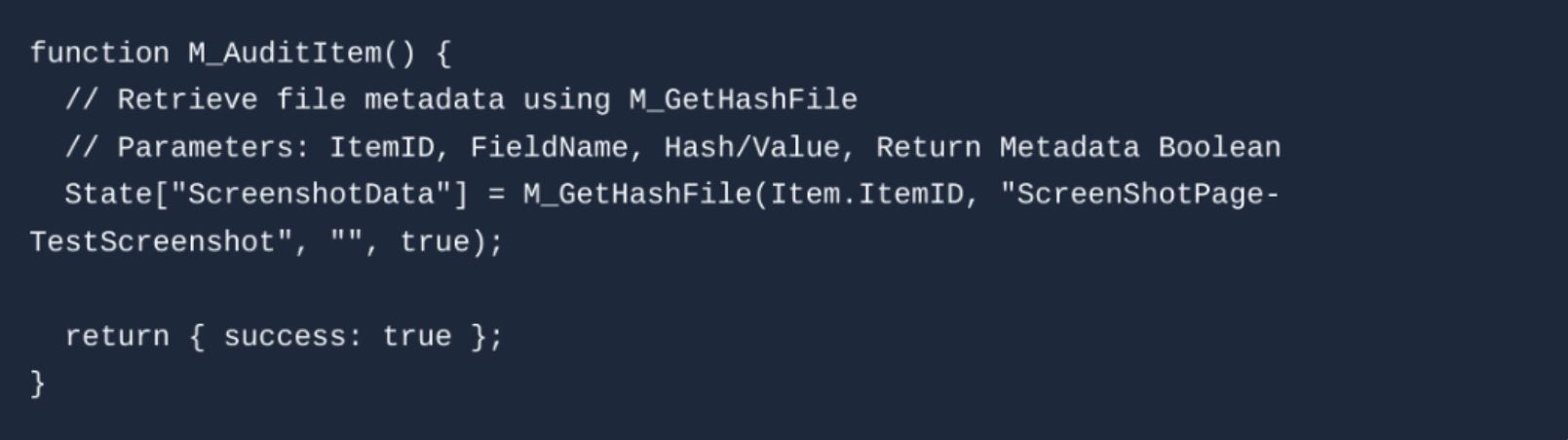
Performance Warning: Large Volume File Audits Using M_GetHashFile() forces the script to pull the file from network storage. Standard row auditing processes 5,000 to 10,000 rows per second. Pulling file metadata reduces performance to 100 - 200 rows per second.
Best Practice: Do not use this method to audit millions of rows of files. For high-volume file verification (e.g., ensuring an image isn't a 2-byte "blocked" error image), it is much more efficient to validate the file size inside the Agent via JavaScript before it is saved to the database.
Managing and Executing Audit Scripts
Once your script is written and saved, it can be executed in several ways to enforce quality control across your pipelines.
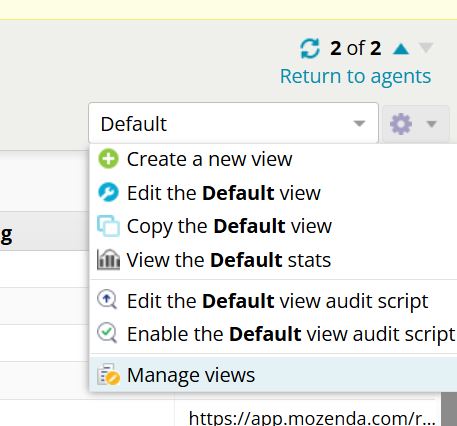
Assigning and Enabling Audit Scripts
Audit Scripts can be assigned and stored at both the individual Agent level and the Agent Group level. Storing a script at the Agent Group level allows you to share and inherit the same quality assurance logic across multiple agents automatically. Once a script is attached to a View, it features an "audit script enabled" flag. This allows you to easily toggle the script on or off from the View settings without having to delete the underlying JavaScript code.
.png)
.png)
.png)
Version History and Restoration
Mozenda tracks a complete history of audit script edits. Because these scripts dictate data delivery, the platform logs who changed the script and when it was modified. If a recent edit breaks your validation logic, you can easily view past iterations and restore a previous version of the script.
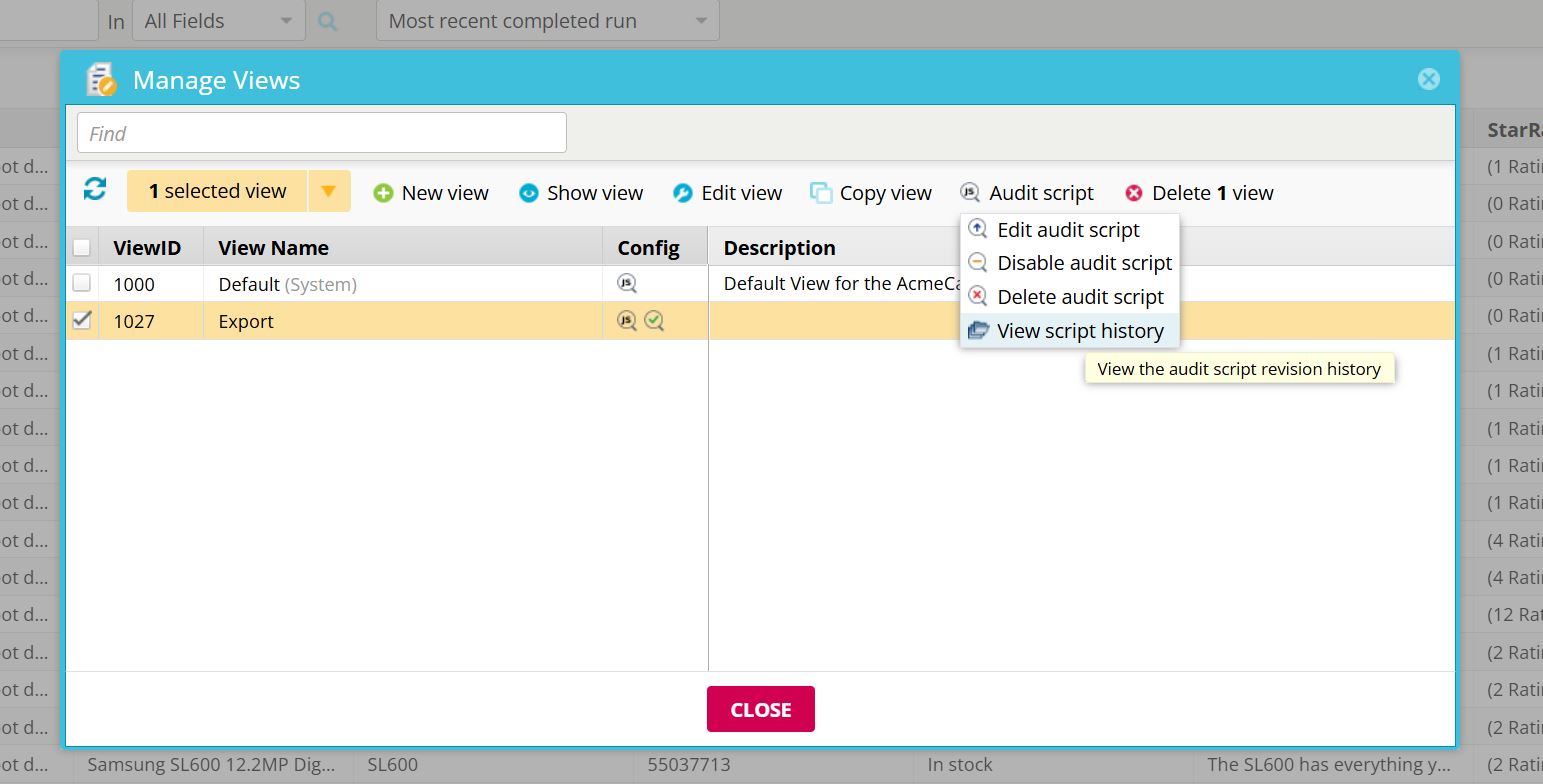
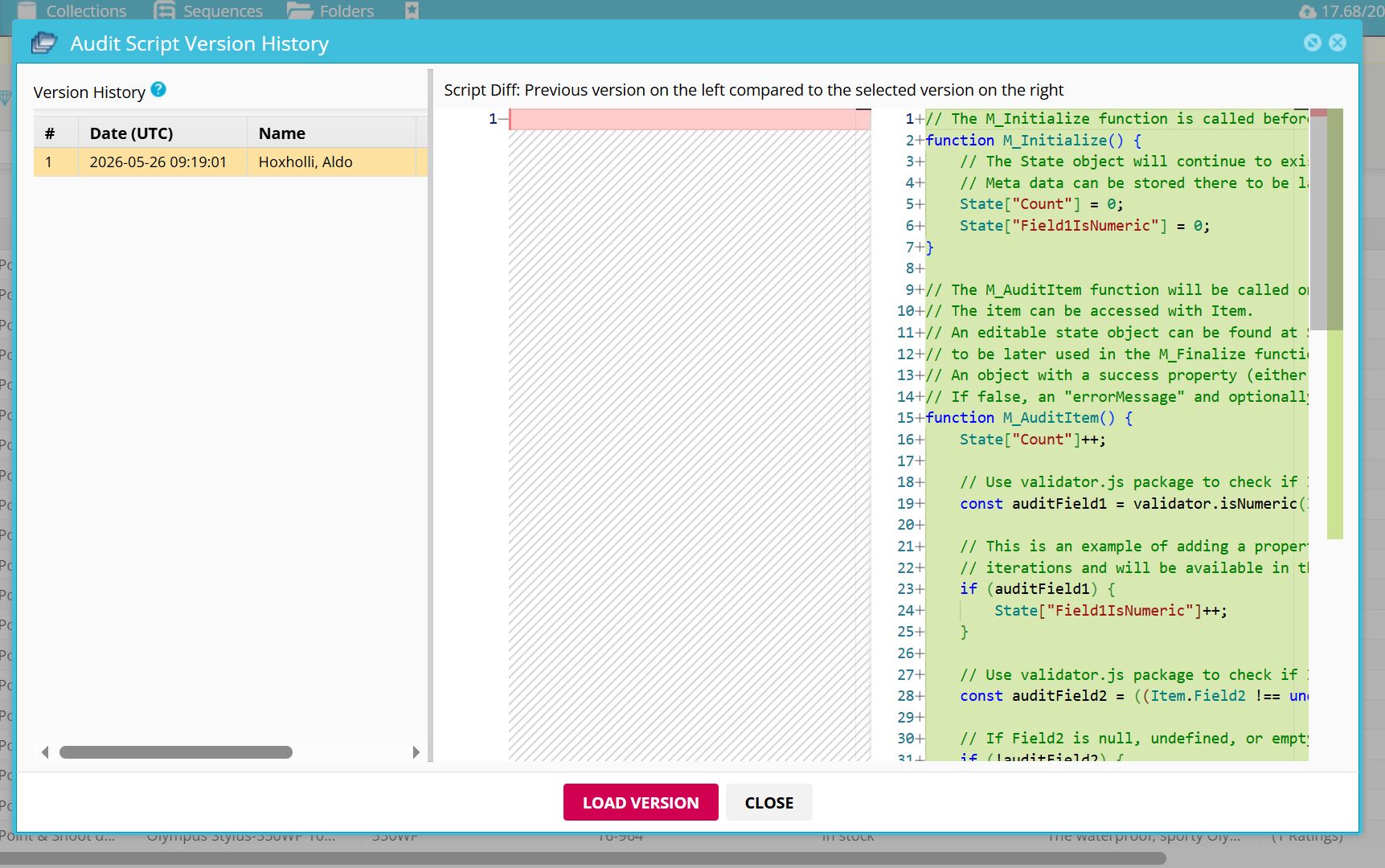
Execution Workflows
Audit Scripts can be executed in several ways depending on your pipeline's needs.
Automatic Execution on Report Refresh
The most common way Audit Scripts run is automatically during the view bookmark creation process. Whenever a standard agent completes its harvesting job and enters the "Refreshing" status, the system will automatically execute all enabled audit scripts attached to that collection. This includes any scripts inherited from shared Agent Group views.
REST API Execution
If you manage your jobs externally, you can trigger Audit Scripts on demand via the REST API using View.auditScriptExecute.
Sequence Integration
To strictly enforce quality before data delivery, you can use the Audit collection view Step inside a Sequence.
- Open your Sequence Builder.
- Add a new step and select Audit collection view.
- Configure the step to point to the Collection and View containing your script.
When the Sequence runs, it will pause at this step. Depending on the logic in your M_Finalize() function, the script will return a Success, Warning, or Error. If an error is returned, the sequence will halt, completely preventing bad data from moving forward to your publishing steps or third-party integrations.
.png)
.png)